Printer Offline Error Complete Easy Guide to Fix It on Windows 11 and Windows 10
You click Print, you wait… and instead of your page coming out, Windows shows just one word: Offline. The printer light is on. The power cable is plugged in. Everything looks fine — but your computer insists the printer isn’t there.
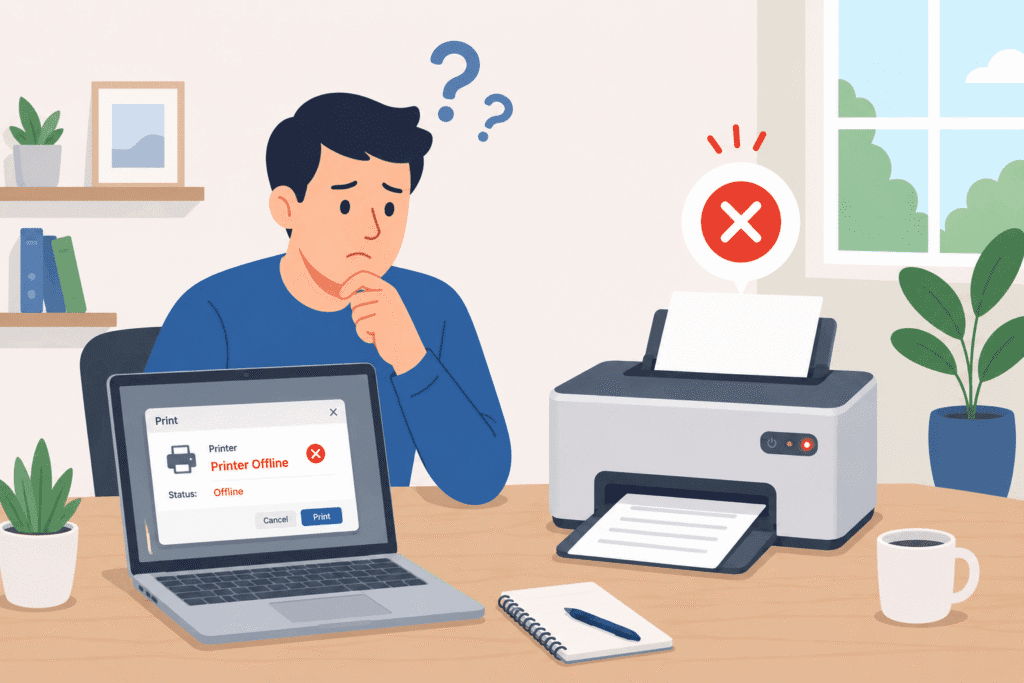
Take a breath. This is one of the most common and easiest computer problems to fix. In almost every case, your printer is not broken. It is simply a small communication mix-up between Windows and the printer, and you can fix it yourself in a few minutes, without calling a technician or paying for a repair visit.
This guide gives you every working solution, explained in simple, everyday English, arranged from the fastest fix to the more advanced ones. It works no matter which printer brand you use — HP, Canon, Epson, Brother, Dell, Samsung, or any other — and whether your printer connects by USB cable or Wi-Fi. Just go through the fixes one by one, test printing after each step, and most people solve the problem within the first five minutes.
1. What Does “Printer Offline” Really Mean?
Windows keeps checking in with your printer every so often, almost like sending a quick “Are you there?” message. If the printer does not answer back in time, Windows marks it as offline and pauses every job you send to it — even though the printer might be sitting right in front of you, fully powered on.
In simple words: this error usually does not mean your printer is damaged. It usually means:
- The printer changed its network address
- The printer went to sleep to save power
- The connection between your computer and printer dropped for a moment
- Windows lost track of the printer for some other small reason
Think of it like a phone call that got disconnected for a second. The people on both ends are fine — they just need to reconnect.
2. Common Reasons a Printer Shows Offline –
Before jumping into fixes, it helps to understand what usually causes this error –
- The printer is turned off, asleep, or showing a paper jam / low ink warning on its own screen
- A loose, damaged, or unplugged USB cable
- The printer dropped off Wi-Fi, or its IP address changed after the router restarted
- The “Use Printer Offline” setting got switched on by accident in Windows
- The Print Spooler service (the background helper that manages printing) has frozen or crashed
- A stuck print job is blocking every job behind it in the queue
- An outdated, missing, or corrupted printer driver
- The wrong printer is set as the default printer
- Antivirus or firewall software is blocking communication with the printer
- A recent Windows update changed printer settings or replaced a driver file
- The printer and computer are connected to two different Wi-Fi networks (common with dual-band routers)
3. Before You Start | 3 Super Quick Checks (30 Seconds) –
These three checks alone solve the problem for a huge number of people, in under a minute, with zero settings changes.
- Look at the printer itself. Is the power light on? Is there a paper jam, open cover, or low ink/toner warning showing on its screen?
- Check the cable. If it is a wired printer, make sure the USB cable is firmly pushed in at both ends — the printer side and the computer side.
- Check the Wi-Fi. If it is a wireless printer, look at its own display screen to confirm it is still connected to your home or office Wi-Fi network name.
If everything above looks normal, move on to the numbered fixes below, in order.
4. Step-by-Step Fixes (Easiest to Hardest) –
Fix 1: Restart the Printer, Computer, and Router –
This sounds almost too simple, but it solves the offline error more often than any other single step. Restarting clears small, temporary glitches on both ends of the connection.
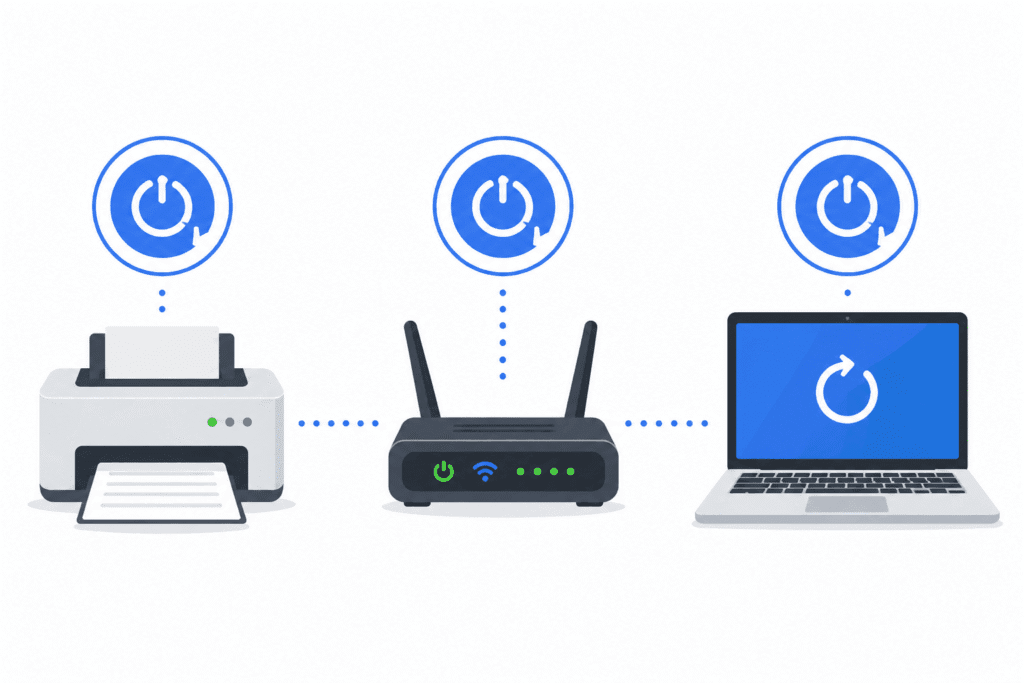
- Turn off the printer and unplug it from the power socket.
- Restart your computer. If the printer is wireless, restart your Wi-Fi router too.
- Wait about 30 seconds, then plug the printer back in and turn it on.
- Once everything has fully powered back up, open any document and try printing again.
Fix 2: Turn Off “Use Printer Offline” Mode –
Windows has a manual switch that pauses a printer completely, and it is very easy to turn on by accident with a single misplaced click. If this switch is on, Windows will refuse to print no matter how healthy your connection is.
- Windows 11: Open Settings → Bluetooth & devices → Printers & scanners → select your printer.
- Windows 10: Open Settings → Devices → Printers & scanners → select your printer.
- Click Open print queue, then click the Printer menu at the top of the window.
- Make sure both “Pause Printing” and “Use Printer Offline” are unchecked.
- Close the window and send a test print.
Fix 3: Restart the Print Spooler Service –
The Print Spooler is the background service that manages every print job on your computer. When it freezes or crashes, Windows loses touch with the printer and shows it as offline, even though nothing is physically wrong with the device.
- Press Windows key + R to open the Run box.
- Type services.msc and press Enter.
- Scroll down and find Print Spooler in the list.
- Right-click it and choose Restart. If Restart is greyed out, choose Start instead.
- If the service shows as Stopped, right-click it, choose Properties, set Startup type to Automatic, then click Apply and OK.
- Restart your computer and try printing again.
Fix 4: Clear a Stuck Print Queue –
One single failed print job can jam the entire line of documents behind it, and Windows sometimes reports this as the printer going offline.
- Open Printers & scanners from Settings and select your printer.
- Click Open print queue.
- Click the Printer menu, then choose Cancel All Documents.
- If a job refuses to disappear, restart the Print Spooler service (Fix 3 above) — this almost always clears it.
Fix 5: Set the Correct Printer as Default –
If you have ever installed more than one printer, or connected to different Wi-Fi networks over time, Windows may be quietly sending your jobs to the wrong device — sometimes even to a “virtual” printer like a PDF writer.
- Open Settings → Bluetooth & devices → Printers & scanners (Windows 11) or Settings → Devices → Printers & scanners (Windows 10).
- Turn off “Let Windows manage my default printer.”
- Click on your actual printer from the list and choose Set as default.
- Try printing again.
Fix 6: Run the Built-in Windows Printer Troubleshooter –
Windows includes a free, automatic tool that checks for the most common causes of the offline error and fixes several of them for you.
- Windows 11: Settings → System → Troubleshoot → Other troubleshooters → find Printer → click Run.
- Windows 10: Settings → Devices → Printers & scanners → click Run the troubleshooter under Related settings.
- Follow the on-screen instructions and allow it to apply any fixes it finds.
Fix 7: Update or Reinstall the Printer Driver –
An old or damaged driver is one of the most common long-term causes of the offline error, especially right after a Windows update.
- Press Windows key + X and open Device Manager.
- Expand Print queues (or Printers), right-click your printer, and choose Update driver.
- Choose “Search automatically for drivers.”
- If that does not find anything newer, go to your printer manufacturer’s official website, search your exact model number, and download the latest full driver package directly from there.
- Restart your computer after installing the new driver.
Fix 8: Remove the Printer and Add It Again –
Sometimes the cleanest solution is to let Windows completely forget the printer and rediscover it fresh — this clears out any old, corrupted settings.
- Go to Settings → Printers & scanners.
- Select your printer and click Remove device.
- Click Add a printer or scanner and wait for Windows to detect it again.
- Select your printer once it appears and complete the setup.
Fix 9: Check for Windows Updates –
Microsoft regularly releases small fixes for printing bugs through Windows Update. If your system is a little outdated, you might be carrying a printing bug that has already been fixed for everyone else.
- Go to Settings → Windows Update.
- Click Check for updates and install anything available.
- Restart your computer and test printing again.
Fix 10: Check Firewall and Antivirus Settings –
Security software occasionally blocks the network ports a printer uses to communicate, especially right after you install new antivirus software.
- Temporarily turn off your antivirus or firewall for one minute and try printing.
- If it works, go into your antivirus program’s settings and add your printer as an allowed device or exception, then turn protection back on.
Fix 11: Run Network Adapter Troubleshooter (Wireless Printers) –
If your Wi-Fi printer keeps dropping, run the built-in network troubleshooter to fix small connection glitches at the source.
- Go to Settings → System → Troubleshoot → Other troubleshooters.
- Find Network Adapter and click Run.
- Follow the prompts and restart your computer after it finishes.
Fix 12: Check the Windows Print Processor Setting –
This is a lesser-known fix. Sometimes a corrupted print processor setting confuses Windows and causes an offline status.
- Open the printer’s Properties window (right-click the printer in Printers & scanners → Printer properties).
- Go to the Advanced tab and click Print Processor.
- Make sure it is set to winprint and the default data type.
- Click OK, apply, and test printing again.
5. Fixes for Wireless (Wi-Fi) Printers Only –
Wireless printers can quietly lose their network connection or get assigned a brand-new IP address every time the router restarts, which breaks the saved link Windows had for it.
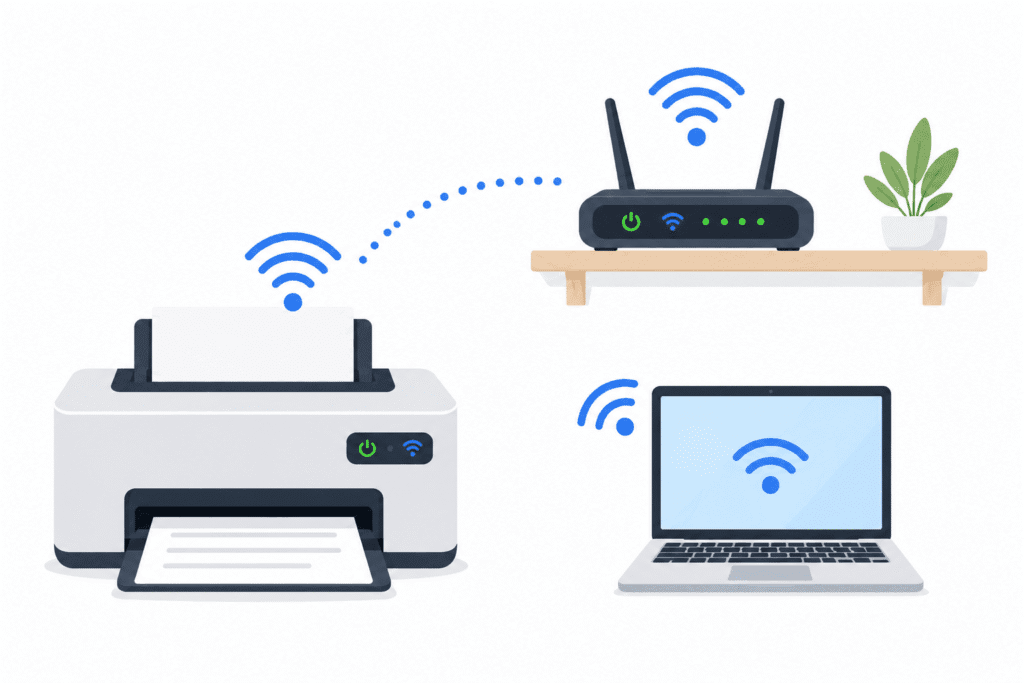
- On the printer’s own screen, confirm it still shows connected to your correct Wi-Fi network name.
- If it is disconnected, reconnect it to Wi-Fi through the printer’s own network settings menu.
- Make sure your computer and printer are on the same Wi-Fi network — this is a very common problem with routers that broadcast two separate networks (a 2.4GHz and a 5GHz band).
- If this keeps happening again and again, ask your router to always give the printer the same IP address. This is called a DHCP reservation or static IP, and it stops the printer’s address from changing every time the router restarts.
- If your printer supports Wi-Fi Direct, try connecting through that as a temporary test to confirm whether the issue is your router or the printer.
6. Fixes for USB (Wired) Printers Only –
- Try a different USB cable — cables wear out and stop working reliably over time.
- Try a different USB port on your computer, ideally directly on the back of a desktop rather than through a USB hub.
- Avoid using USB extension cables or hubs where possible; connect the printer directly to the computer.
- Check Device Manager for a yellow warning triangle next to the printer, which usually points to a driver issue.
- Try the printer on a different computer to check if the problem is the cable, the USB port, or the printer itself.
7. Brand-Specific Fixes | HP, Canon, Epson, Brother, Samsung –
Different printer brands have their own small quirks worth knowing, in addition to the general Windows fixes above.
HP Printers –
Install the HP Smart app from the Microsoft Store or from 123.hp.com. It can automatically diagnose and repair offline errors, and it has replaced the older HP Print and Scan Doctor tool. HP printers going offline right after Wi-Fi setup is very common — running HP Smart’s repair tool usually fixes it in one click.
Canon Printers –
Canon printers often go offline after a Windows update resets the print spooler, or when Quiet Mode or Eco settings slow down the printer’s response time. Restarting the spooler (Fix 3) and checking these power-saving settings on the printer usually solves it.
Epson Printers –
Epson printers can be affected by an SNMP setting on the printer port. If nothing else works, open the printer’s port settings in Windows (Printer properties → Ports tab → Configure Port) and try disabling “SNMP Status Enabled,” then reconnect.
Brother Printers –
Brother printers commonly receive a new IP address every time the router restarts. Setting a static IP address or DHCP reservation for the printer, as explained in the wireless section above, is the most reliable long-term fix.
Samsung Printers –
Samsung printer drivers are now maintained through HP (since HP acquired Samsung’s printer division). If your Samsung printer keeps going offline, download the latest driver from HP’s support site using your Samsung model number, and use the same steps as the HP section above.
8. Advanced Fixes for IT Users and Office Networks –
If you manage a shared office printer or a network of computers, try these additional steps –
- Check the print server (if using one): Restart the Print Spooler service on the server, not just the individual computer.
- Review Event Viewer logs: Open Event Viewer → Windows Logs → System, and look for errors related to “Print” around the time the offline error appeared. This can point to a specific driver or network cause.
- Check Group Policy settings: In managed office networks, a Group Policy update can sometimes reset printer configurations.
- Verify the print server’s shared printer permissions: Right-click the shared printer → Properties → Security tab, and confirm your user account has “Print” permission.
- Check for a DNS or domain name mismatch: On larger networks, a printer registered under an old computer name or IP can cause the offline status to appear only for some users and not others.
9. How to Stop the Offline Error From Coming Back –
A few simple habits will keep this error from returning once you have fixed it –
- Keep your printer driver updated every couple of months, and especially right after a major Windows update.
- Give your wireless printer a fixed IP address so it does not change every time the router restarts.
- Avoid unplugging the printer or router while a print job is still in progress.
- Turn off overly aggressive power-saving or sleep settings on the printer if you print often throughout the day.
- Restart the printer occasionally, even when it is working perfectly — this clears small memory glitches before they turn into problems.
- Keep your antivirus program’s printer exception in place so future updates do not silently re-block it.
10. When to Call a Technician or Replace the Printer –
If you have worked through every fix above and the printer still refuses to come online –
- Test it on a different computer, or connect it directly by USB, to rule out a fault in the printer itself.
- If it behaves the same way everywhere, the problem is likely inside the printer’s hardware, not your computer.
- If it is an older printer model that the manufacturer no longer supports with driver updates, it is often more practical — and cheaper in lost time — to replace it than to keep troubleshooting the same recurring error.
11. Final Thoughts
A “Printer Offline” error looks alarming the moment you urgently need to print something, but it is honestly one of the most fixable problems in everyday technology. In almost every case, your printer is completely fine — the fix is simply reminding Windows that it is there. Whether that means restarting the Print Spooler, clearing a stuck job, fixing a Wi-Fi address, or updating a driver, one of the steps above should bring your printer back online well before you reach the last one.
Frequently Asked Questions (FAQ)-
- Why does my printer keep going offline randomly? This usually happens because of a dropped Wi-Fi connection, a frozen Print Spooler service, or the printer’s IP address changing after the router restarts. Work through the fixes above in order to find which one applies to you.
- How do I get my printer back online in Windows 11? Go to Settings → Bluetooth & devices → Printers & scanners, open your printer’s print queue, and make sure “Use Printer Offline” is unchecked. If that does not help, restart the Print Spooler service (Fix 3).
- How do I get my printer back online in Windows 10? Go to Settings → Devices → Printers & scanners, open the print queue for your printer, and uncheck “Use Printer Offline.” Restarting the Print Spooler service usually resolves it if the setting was already off.
- Does restarting the printer fix the offline error? Yes. In a large share of cases, a full power cycle of the printer, computer, and router clears the offline status because it resets the temporary connection state on both devices.
- What does “Use Printer Offline” mean in Windows? It is a manual switch that tells Windows to pause all print jobs and treat the printer as unavailable. It is meant for times you deliberately want to stop printing, but it sometimes gets toggled on by mistake.
- How do I turn off “Use Printer Offline” in Windows 11? Open the printer’s print queue from Printers & scanners, click the Printer menu at the top, and remove the checkmark next to “Use Printer Offline.”
- Why does my wireless printer keep disconnecting from Wi-Fi? Most wireless printers use an address that can change whenever the router restarts. Assigning the printer a fixed IP address through your router settings usually stops this for good.
- Can a loose USB cable cause the offline error? Yes. A partially connected or damaged USB cable can make Windows lose contact with the printer. Try a different cable and a different USB port if the printer is wired.
- What is the Print Spooler and why does it matter? The Print Spooler is a background Windows service that manages every print job in the queue. If it freezes or crashes, Windows can no longer talk to any printer and shows it as offline.
- How do I restart the Print Spooler service? Press Windows key + R, type services.msc, find Print Spooler in the list, right-click it, and choose Restart.
- What if the Print Spooler won’t start at all? Right-click Print Spooler in services.msc, open Properties, set Startup type to Automatic, click Start under Service status, then Apply and OK.
- How do I clear a stuck print job from the queue? Open the print queue from Printers & scanners, click the Printer menu, and choose Cancel All Documents. If it will not clear, restart the Print Spooler service.
- Why won’t my print job cancel? A job that has already been partially sent to the printer can get stuck in the queue. Restarting the Print Spooler service almost always forces it to clear.
- How do I set my printer as the default printer? Go to Printers & scanners in Settings, turn off “Let Windows manage my default printer,” select your printer, and choose Set as default.
- What does “Let Windows manage my default printer” do? When turned on, Windows automatically switches your default printer based on whichever one you used most recently at your current location, which can accidentally point jobs at the wrong device.
- How do I run the printer troubleshooter in Windows 11? Go to Settings → System → Troubleshoot → Other troubleshooters, find Printer in the list, and click Run.
- Does Windows 10 still have a printer troubleshooter? Yes. Go to Settings → Devices → Printers & scanners and click Run the troubleshooter under Related settings.
- How do I update my printer driver? Open Device Manager, expand Print queues, right-click your printer, choose Update driver, and let Windows search automatically.
- Where can I download the correct driver for my printer? Visit your printer manufacturer’s official support website and search using your printer’s exact model number to get the correct, latest driver.
- Should I use the manufacturer’s software instead of Windows drivers? For most modern printers, yes. Apps like HP Smart or Canon’s official utility tend to keep the driver healthier and offer built-in repair tools that generic Windows drivers do not have.
- How do I remove and reinstall a printer in Windows? Go to Printers & scanners, select the printer, click Remove device, then click Add a printer or scanner to let Windows detect and reinstall it fresh.
- Why does my HP printer show offline even when connected to Wi-Fi? This is often caused by a stale IP address saved in Windows or a driver conflict after an update. Removing and re-adding the printer, or using the HP Smart app’s repair tool, usually fixes it.
- What is the HP Smart app and does it help? It is HP’s official printer management app, and it includes a built-in diagnose-and-fix tool that resolves offline errors, queue issues, and connection problems automatically.
- Why does my Canon printer go offline after Windows updates? Windows updates can reset print spooler settings or overwrite driver files. Restarting the spooler and reinstalling the latest Canon driver typically resolves this.
- How do I fix a Brother printer that keeps showing offline? Brother printers frequently change IP address after a router restart. Setting a fixed IP address or DHCP reservation for the printer is the most reliable fix.
- Does an Epson printer offline error need different steps? The general fixes apply the same way, but Epson printers can also be affected by SNMP port settings, which can be adjusted in the printer’s port properties if other fixes do not work.
- Are Samsung printers fixed the same way as HP printers? Yes, largely. Since HP now maintains Samsung printer drivers, using HP’s driver download page with your Samsung model number, and HP Smart app tools, usually resolves the issue.
- Can a firewall or antivirus block my printer? Yes. Some security software blocks the network ports printers use to communicate. Temporarily disabling it to test, then adding the printer as an exception, resolves this.
- Why does my printer go offline only when the computer wakes from sleep? Sleep mode can disconnect network adapters faster than the printer notices, so Windows marks it offline until you refresh the connection by restarting the Print Spooler or reconnecting to Wi-Fi.
- Can a recent Windows update cause the offline error? Yes. Feature updates occasionally overwrite printer driver files or reset default printer settings, which is why reinstalling the driver often fixes issues that appear right after an update.
- Does changing my printer’s IP address to static help? Yes, especially for wireless printers. A static or reserved IP address means the printer’s address never changes, so Windows never loses track of it after a router restart.
- Why does my network printer disappear from the printers list? This usually happens when the printer’s IP address changes or the network connection drops. Removing and re-adding the printer, or fixing the IP address, brings it back.
- Is the offline error different for network printers vs USB printers? The root cause is different — network printers usually go offline due to Wi-Fi or IP issues, while USB printers usually go offline due to a cable, port, or driver problem — but most of the Windows-side fixes above apply to both.
- Can low ink or toner cause an offline status? Occasionally. Some printers pause and stop responding to Windows when ink or toner is critically low, which Windows can misreport as an offline error rather than a low-ink warning.
- Does a paper jam make the printer show as offline? Yes. A printer that is jammed or has an open cover often stops responding to Windows’ status checks, which then shows up as offline until the jam is cleared.
- Why does the printer show offline on one computer but not another? This points to a local Windows-side issue rather than a printer problem — check the print queue, default printer setting, and driver on the affected computer specifically.
- How often should I update printer drivers? Checking every two to three months, and right after any major Windows update, is enough to avoid most driver-related offline errors.
- Can I fix the printer offline error without restarting my computer? Often yes. Turning off “Use Printer Offline,” restarting just the Print Spooler service, or clearing the print queue can all be done without a full restart.
- What should I do if none of these fixes work? Try the printer on a different computer or a direct USB connection to confirm whether the printer itself is faulty. If it still will not come online, contact the manufacturer’s support team or a local repair technician.
- Is it worth replacing an old printer that keeps going offline? If the printer is several years old, its driver is no longer updated by the manufacturer, or the offline error keeps returning despite every fix, replacing it is often cheaper than the repeated lost time.
- How can I prevent the printer offline error in the future? Keep drivers updated, give your printer a fixed IP address, avoid unplugging devices mid-print, and restart the printer occasionally even when it is working fine.
- Does this guide work for all printer brands? Yes. All the general Windows-side fixes work for every printer brand. The brand-specific section covers a few extra tips for HP, Canon, Epson, Brother, and Samsung printers.
- Does this guide work for both Windows 11 and Windows 10? Yes, every fix in this guide includes the exact menu path for both Windows 11 and Windows 10, so you can follow along no matter which version you use.
Read More –
External Links (authoritative sources) —